Are you using Pipedrive to manage your sales and QuickBooks for accounting? You might be wondering if these two powerful tools can work together smoothly.
Imagine cutting down the time you spend entering data manually and avoiding costly mistakes by having your sales and financial information synced automatically. Does Pipedrive integrate with QuickBooks? The answer is yes—and understanding how this integration works can transform the way you handle your business operations.
Keep reading to discover how connecting Pipedrive with QuickBooks can simplify your workflow, save you time, and help you stay on top of your invoices and customer data effortlessly.
Pipedrive And Quickbooks Connection
Pipedrive and QuickBooks can work together to improve business workflows. Connecting these two tools helps manage sales and finances smoothly. This connection reduces manual work and errors. It allows sales data from Pipedrive to sync with accounting records in QuickBooks. Businesses get clear insight into invoices, payments, and customer details.
Understanding the connection options is key. The integration depends on the QuickBooks version and the chosen method. Some use direct links, while others rely on third-party tools. Choosing the right setup ensures efficient data transfer between sales and accounting.
Supported Quickbooks Versions
Pipedrive mainly supports QuickBooks Online versions. This cloud-based QuickBooks version allows easier integration. QuickBooks Desktop versions have limited or no direct support. Users with Desktop versions often need extra tools for connection. QuickBooks Online offers real-time syncing, which benefits sales tracking and financial reporting. Businesses should confirm their QuickBooks version before integration.
Integration Methods
There are different ways to connect Pipedrive with QuickBooks. Some integrations are built-in or native, providing seamless syncing. These allow automatic transfer of invoices, payments, and customer info. Another method is using API connections for custom setups. API lets businesses tailor the data flow based on needs. Choosing the right method depends on business size and technical skills.
Third-party Connectors
Third-party connectors are popular for linking Pipedrive and QuickBooks. Tools like Zapier, Automate.io, or Integromat help create workflows without coding. These connectors sync contacts, deals, and invoices between platforms. They offer flexibility and support various QuickBooks versions. Using connectors can save time and reduce errors in data entry. Businesses should check connector features and pricing before use.

Credit: www.pipedrive.com
Syncing Contacts And Products
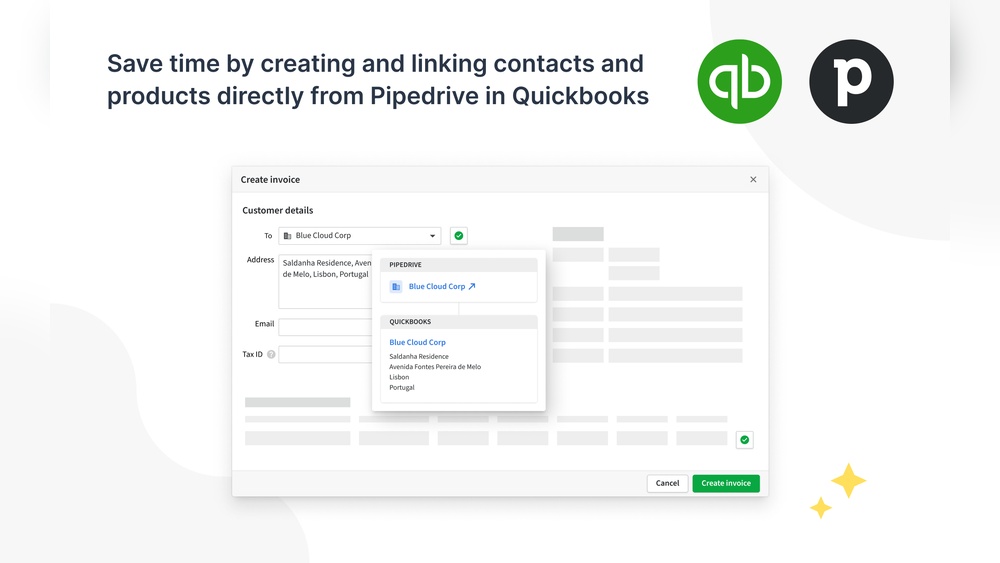
Syncing contacts and products between Pipedrive and QuickBooks streamlines your business operations. It helps keep customer details and product information consistent across both platforms. This synchronization reduces manual data entry and cuts down errors. Both sales and accounting teams benefit from having up-to-date data. Understanding how contact and product sync works improves your workflow efficiency.
Contact Synchronization
Contact synchronization transfers customer information between Pipedrive and QuickBooks. When you add or update a contact in Pipedrive, it appears in QuickBooks automatically. This keeps your billing and sales records aligned. You avoid duplicating efforts by entering contacts only once. The sync supports key details like names, emails, phone numbers, and addresses. It ensures your customer data stays current for invoicing and communication.
Product And Service Sync
Product and service sync shares item details between the two platforms. Products listed in Pipedrive become available in QuickBooks for billing purposes. This includes prices, descriptions, and SKU numbers. Updating product info in one system updates the other. It helps keep your sales and accounting teams on the same page. Accurate product data speeds up invoice creation and order management.
Data Accuracy Tips
Ensure data accuracy by regularly checking sync settings. Avoid creating duplicate contacts or products in either system. Use clear naming conventions to prevent confusion. Schedule syncs during low-activity times to minimize errors. Back up your data before major syncs for safety. Consistent reviews help catch mismatches early and maintain clean records.
Invoice Automation Features
Invoice automation features bridge the gap between sales and accounting. They simplify billing tasks and save time. Integrating Pipedrive with QuickBooks enhances invoice handling. Automation reduces manual entry and errors. This makes managing invoices faster and more accurate.
Creating Invoices From Deals
Pipedrive lets you create invoices directly from your deals. You can transfer deal details to QuickBooks automatically. This keeps customer and product information consistent. It eliminates the need to retype data. Generating invoices from deals speeds up the billing process.
Tracking Invoice Status
Tracking invoices becomes easy with this integration. You can see if invoices are paid, pending, or overdue. QuickBooks updates the invoice status in Pipedrive. This helps you monitor payments without switching apps. Staying informed ensures timely follow-ups with clients.
Sending And Managing Invoices
QuickBooks allows you to send invoices via email right from the platform. You can customize invoice templates to match your brand. Managing invoices includes sending reminders and tracking responses. This automation helps maintain cash flow and improves client communication.
Benefits Of Integration
Integrating Pipedrive with QuickBooks brings clear advantages for businesses. The connection between sales and accounting systems streamlines processes. It helps save time and reduce errors. Teams work more smoothly and stay updated on financial matters.
Reducing Manual Data Entry
Integration cuts down on typing the same data twice. Sales details from Pipedrive flow directly into QuickBooks. This avoids mistakes common in manual entry. It also frees up time for more important tasks. Teams can focus on closing deals instead of paperwork.
Improving Sales And Accounting Alignment
Both teams share the same information instantly. Sales and accounting no longer work in isolation. This alignment ensures invoices and payments match sales records. Disputes over numbers decrease significantly. Everyone understands the business status clearly.
Real-time Financial Updates
QuickBooks updates financial data as sales happen in Pipedrive. Managers see current revenue and outstanding payments at a glance. This helps make faster, smarter decisions. Real-time insights improve cash flow management. Businesses stay on top of their financial health.
Setup And Configuration
Setting up and configuring the Pipedrive and QuickBooks integration is a straightforward process. It ensures smooth data flow between your sales and accounting systems. Proper setup saves time and reduces errors in your financial records.
Follow the steps carefully to connect your accounts and customize your sync preferences. Watch out for common issues that can occur during setup. Fixing these quickly helps maintain accurate data across both platforms.
Connecting Accounts
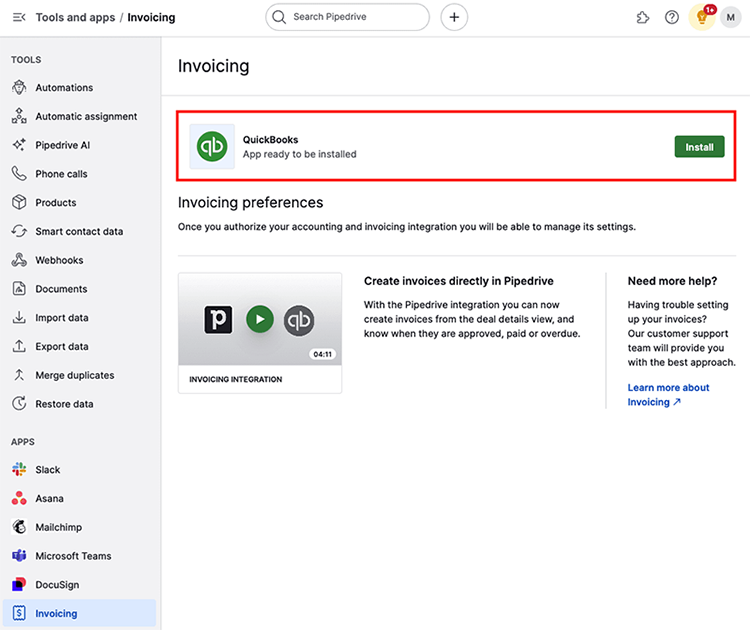
Start by logging into your Pipedrive account. Go to the Marketplace and find the QuickBooks integration app. Click on the install button to begin the connection process.
Next, you will be prompted to log into your QuickBooks account. Enter your credentials and allow Pipedrive to access your QuickBooks data. This permission is necessary for syncing information between the two apps.
After authorization, the accounts are linked. This connection enables automatic transfer of invoices, contacts, and payments between Pipedrive and QuickBooks.
Configuring Sync Preferences
Once the accounts are connected, set your sync preferences. Choose which data types to sync, such as customers, deals, or invoices. Decide how often the sync should occur—manually or automatically.
Map Pipedrive fields to corresponding QuickBooks fields. This step ensures data matches correctly in both systems. For example, map the Pipedrive contact name to the QuickBooks customer name.
Save your preferences to activate the sync. Regularly review and adjust settings to keep data accurate and up to date.
Common Setup Issues
Some users face issues during setup. A common problem is login failures due to incorrect credentials. Double-check your username and password for both accounts.
Sync errors may happen if the permissions are not fully granted. Ensure Pipedrive has full access rights to your QuickBooks data.
Data mismatches can occur if field mappings are incorrect. Review all mappings carefully to avoid missing or duplicated information.
Contact support if problems persist after troubleshooting. Early resolution helps keep your sales and accounting aligned.
Credit: support.pipedrive.com
Popular Alternatives To Quickbooks
Many businesses seek alternatives to QuickBooks for various reasons. Some need more affordable options. Others want specialized features or easier interfaces. Several accounting software programs offer unique benefits that suit different needs. Exploring popular alternatives helps find the best fit for your business.
Xero Features
Xero offers unlimited users with no extra cost. It has a clean, simple interface that many users like. Small and mid-sized businesses find it helpful for collaboration. Xero supports bank reconciliation, invoicing, and expense tracking. It also integrates well with many other tools.
Zoho Books Advantages
Zoho Books is part of the Zoho business suite. It provides an all-in-one solution for accounting and CRM. Automation features reduce manual data entry. Zoho Books supports multi-currency and tax compliance. It is a good choice for growing businesses.
Freshbooks For Freelancers
FreshBooks is tailored for freelancers and service providers. It offers easy time tracking and invoicing. The interface is user-friendly and simple to navigate. FreshBooks helps manage projects and expenses efficiently. It suits small teams and solo entrepreneurs well.
Other Notable Options
Wave is a free option for basic accounting needs. Sage Intacct fits larger businesses needing advanced features. NetSuite offers robust cloud-based financial management. AccountEdge is a strong desktop choice for small businesses. Each alternative has strengths depending on business size and goals.
Choosing The Right Accounting Tool
Choosing the right accounting tool is a crucial step for any business. The right software helps track finances, manage invoices, and simplify tax tasks. It also supports growth by providing clear financial insights. Businesses must consider their unique needs before selecting an accounting tool. This ensures smooth operations and better decision-making.
Needs For Small Businesses
Small businesses need easy-to-use software with essential features. Budget-friendly options matter most. Many small businesses want tools that handle invoicing, expense tracking, and reporting. Tools that offer automation save time and reduce errors. Support for tax compliance is also important.
Freelancer And Service-based Options
Freelancers and service providers prefer simple and flexible accounting tools. These tools should manage invoices and payments quickly. Features like time tracking and project billing add value. Cloud-based options are popular for easy access anywhere. Integration with payment platforms simplifies client transactions.
Collaboration And Integration Focus
Collaboration tools are essential for teams managing finances together. Accounting software that integrates with CRM systems, like Pipedrive, boosts efficiency. Integration reduces manual data entry and errors. It helps sync sales data with financial records. This leads to better cash flow tracking and client management.
Desktop Vs Cloud Solutions
Desktop accounting software stores data locally on a computer. It suits users needing offline access and control. Cloud solutions store data online and offer accessibility from any device. They provide automatic updates and backups. Cloud tools support real-time collaboration and remote work. Choosing between them depends on business size, budget, and tech comfort.
Credit: syncmatters.com
Frequently Asked Questions
Why Are People Leaving Quickbooks?
People leave QuickBooks due to high costs, forced online migration, limited lower-cost options, and dissatisfaction with customer support.
What Crm Connects To Quickbooks?
Pipedrive, Zoho CRM, Freshsales, and Insightly connect to QuickBooks. They sync contacts, automate invoicing, and streamline sales processes efficiently.
Does Pipedrive Do Invoicing?
Pipedrive does not offer built-in invoicing but integrates with tools like QuickBooks for invoice management.
What Are People Replacing Quickbooks With?
People replace QuickBooks with Xero, Zoho Books, FreshBooks, Wave, AccountEdge, Sage Intacct, and NetSuite. Each suits different business needs.
Conclusion
Pipedrive and QuickBooks can work together through integration tools. This connection helps sync sales and financial data smoothly. It saves time by reducing manual entry and errors. Businesses can track invoices and payments more easily. The integration suits small to mid-sized companies needing simple accounting.
Choosing the right integration depends on your specific needs. Testing the setup before full use ensures it fits well. Overall, combining Pipedrive with QuickBooks helps manage sales and finance in one place.