
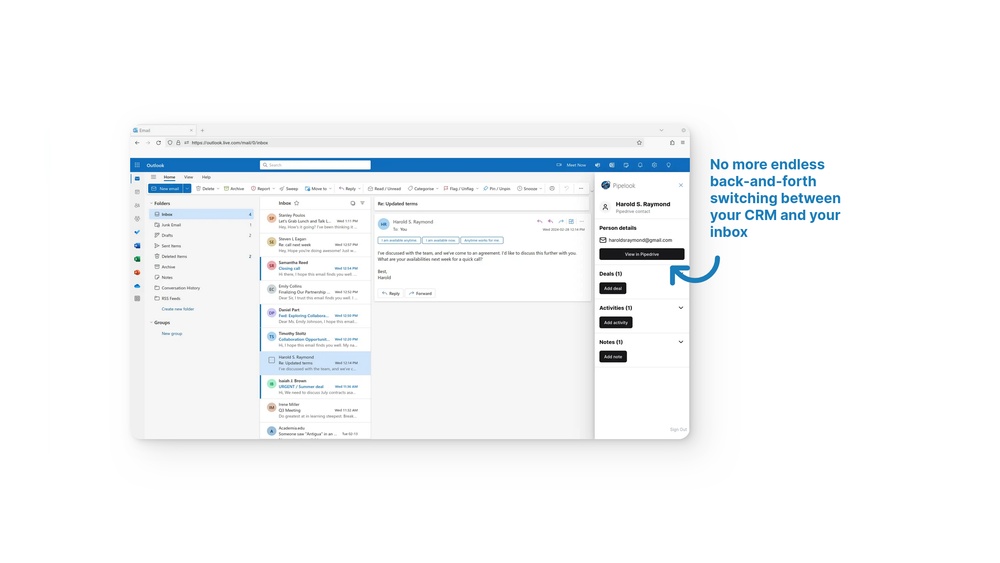
Are you wondering if Pipedrive integrates with Outlook and how this connection could boost your productivity? Managing your sales pipeline and emails separately can slow you down.
Imagine having your contacts, deals, and activities all synced seamlessly within Outlook, so you never miss a beat. You’ll discover exactly how Pipedrive works with Outlook, what features you can expect, and how this integration can simplify your daily workflow.
Keep reading to unlock the full potential of combining these two powerful tools for your sales success.
Pipedrive And Outlook Integration
Pipedrive and Outlook integration allows users to combine their sales and email management tasks. This connection helps streamline communication and organize important information. Users can manage deals, contacts, and emails all in one place without switching apps. The integration brings efficiency and clarity to sales workflows.
Overview Of Pipedrive For Outlook
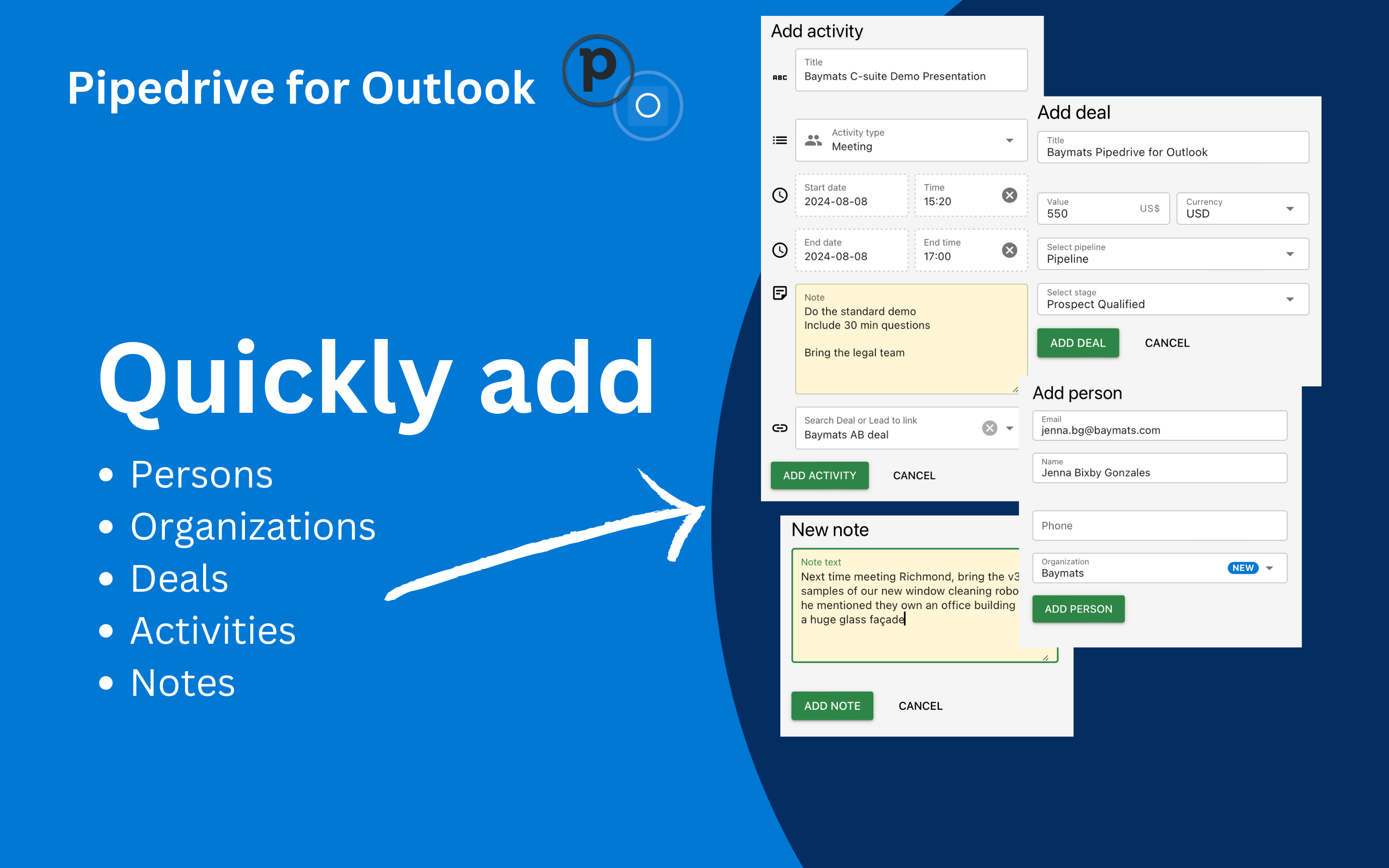
Pipedrive for Outlook is an add-in that links your Pipedrive CRM with Microsoft Outlook. It lets you view and update your sales data directly inside Outlook. You can add new contacts and deals from your emails easily. The add-in also syncs your calendar and activities, keeping everything up to date. It works smoothly with both the desktop and web versions of Outlook.
Key Benefits Of Syncing Crm With Outlook
Syncing Pipedrive with Outlook saves time by reducing manual data entry. Emails get logged automatically, so you never lose track of conversations. Contacts and calendar events stay updated across both platforms. This helps sales teams stay organized and respond faster. The integration improves visibility into customer interactions and deal progress. It also supports better collaboration among team members by sharing data effortlessly.

Credit: www.youtube.com
Setting Up Pipedrive With Outlook
Setting up Pipedrive with Outlook helps you manage your sales and communications in one place. Integrating these tools saves time and keeps your data connected. Follow simple steps to install and configure Pipedrive with your Outlook account.
This guide covers installation, email sync, and calendar and contact sync setup. Each step ensures smooth integration for better productivity.
Installation Steps
First, visit the Microsoft AppSource store. Search for “Pipedrive for Outlook” and click install. Sign in with your Outlook account to authorize the app. The add-in will appear in your Outlook toolbar. This allows quick access to Pipedrive features inside Outlook. Installation usually takes a few minutes.
Configuring Email Sync
Open Pipedrive and go to the email sync settings. Connect your Outlook email by entering your credentials. Choose the folders you want to sync, such as Inbox and Sent items. Enable two-way sync to keep emails updated on both platforms. This setup lets you track emails and link them to deals automatically.
Calendar And Contact Sync Setup
In Pipedrive, navigate to calendar sync options. Connect your Outlook calendar to sync meetings and events. Choose sync direction: one-way or two-way, based on your needs. Next, enable contact sync to import Outlook contacts into Pipedrive. This keeps your contact list unified and up to date.
Features Of Pipedrive Outlook Integration
Pipedrive Outlook integration brings key features that simplify your sales and communication tasks. It connects your CRM and email, so you manage everything in one place. This saves time and improves your workflow. Below are some main features that make this integration useful.
Email Tracking And Logging
Pipedrive tracks your emails sent through Outlook automatically. It shows when recipients open or click links. All emails get logged under the right deals or contacts. This keeps your sales communication organized without manual input.
Two-way Contact Sync
Contacts sync between Pipedrive and Outlook in both directions. New contacts added in one app appear in the other. Changes update automatically to keep your lists current. This prevents duplicate data and saves time updating contacts twice.
Activity And Task Management
You can create and view tasks or activities linked to deals directly from Outlook. Pipedrive syncs these activities so you never miss deadlines or calls. Managing follow-ups becomes easier with reminders and updates available inside your email.
Using Email Templates In Outlook
Pipedrive lets you use email templates right inside Outlook. This speeds up writing repetitive emails and keeps messages consistent. Templates save time and help maintain a professional tone in your sales emails.
Troubleshooting Common Sync Issues
Syncing Pipedrive with Outlook can streamline your sales workflow. Still, sync issues may arise. Troubleshooting these problems helps keep your data accurate and up to date. This section covers common sync issues and how to fix them quickly.
Resolving Email Sync Failures
Email sync failures often occur due to incorrect login details. Check your Outlook and Pipedrive credentials. Make sure both accounts use the same email address for syncing.
Another cause is connection errors. Verify your internet connection is stable. Disable any firewall or antivirus that might block the sync process.
Clear the cache and restart both apps. Update Pipedrive and Outlook to the latest versions. This often resolves bugs causing email sync issues.
Fixing Calendar Sync Problems
Calendar sync can fail if the time zones differ between apps. Ensure both Outlook and Pipedrive use the same time zone settings.
Check calendar permissions. Pipedrive needs access to your Outlook calendar to sync events. Grant the required permissions in your Outlook settings.
Conflicts may appear if events overlap or duplicate. Delete duplicate entries from either app. Re-sync after cleaning your calendar to fix errors.
Contact Sync Conflicts And Solutions
Contact syncing may create duplicates if contacts exist in both apps with slight differences. Use the merge feature in Pipedrive to combine duplicate contacts.
Sync conflicts happen when contacts update simultaneously in both apps. Choose one app as the primary source to avoid overwriting data.
Regularly export and back up your contacts. This prevents data loss during sync errors and helps restore your information quickly.
Comparing Crms With Outlook Integration
Choosing the right CRM with Outlook integration matters for smooth workflow. Outlook is widely used for email and calendar management. A CRM that works well with Outlook saves time and reduces errors. It keeps your contacts, emails, and meetings in one place. Comparing popular CRMs helps find the best fit for your needs. Let’s explore how Pipedrive stacks up with other CRMs offering Outlook integration.
Hubspot Vs Pipedrive
HubSpot offers easy syncing of contacts, emails, and deals with Outlook. It has a clean interface and strong automation tools. HubSpot tracks email opens and clicks inside Outlook. Pipedrive also syncs emails and contacts but focuses more on deal tracking. It lets sales teams update deals directly from Outlook. Both have reliable contact syncing, but HubSpot offers more marketing features. Pipedrive’s simplicity appeals to sales-focused users.
Salesforce Integration Highlights
Salesforce provides deep Outlook integration through its API and Einstein Activity Capture. It syncs emails, contacts, and calendars automatically. Salesforce captures customer interactions and updates records in real time. This integration suits larger teams needing customization. It supports complex workflows and detailed reporting. Compared to Pipedrive, Salesforce offers more powerful tools but with a steeper learning curve. Pipedrive is easier for small to mid-sized businesses.
Other Notable Crm Options
Salesflare is built for sales with automatic data entry from Outlook emails. It helps reduce manual work for sales reps. Zoho CRM offers solid Outlook syncing with email and calendar features. It supports multi-channel communication and integrates well with other Zoho apps. eWay-CRM transforms Outlook into a full CRM with project management. Nutshell provides simple sales automation with native Outlook syncing. Each CRM has unique benefits depending on your workflow and team size.

Credit: www.youtube.com
Choosing The Best Crm For Your Team
Choosing the best CRM for your team requires careful thought. The right tool can improve communication, track leads, and boost sales. Teams need a CRM that matches their work style and goals. It should help sales and marketing work together smoothly. Consider how the CRM fits with other tools your team already uses. Think about future growth too. The CRM should grow with your business and automate routine tasks.
Assessing Sales And Marketing Needs
Start by identifying your team’s main sales and marketing tasks. Does your team need to track many deals? Or focus more on customer follow-up? Some CRMs work better for small teams, others for larger sales forces. Look for features that support your team’s daily work. Email integration, lead scoring, and pipeline views can help sales stay organized. Marketing teams may need campaign tracking and contact segmentation. Choose a CRM that supports both sides well.
Considering Existing Tech Stack
Check which tools your team already uses. The CRM should connect easily to email, calendar, and other apps. Outlook integration is often crucial for teams using Microsoft products. A CRM with smooth Outlook syncing saves time and reduces errors. It lets users manage contacts and deals without switching apps. Compatibility with tools like Google Workspace, marketing platforms, and customer support software also matters. Integration keeps data consistent across systems.
Scalability And Automation Features
Pick a CRM that can grow with your team’s needs. It should handle more users and data as your business expands. Automation features reduce manual work and speed up processes. Automated email follow-ups, task reminders, and deal updates keep sales moving. Look for customizable workflows that fit your sales cycle. A scalable CRM supports growth without needing frequent tool changes. This saves money and avoids disruptions.
Credit: www.pipedrive.com
Frequently Asked Questions
Can Pipedrive Integrate With Outlook?
Yes, Pipedrive integrates directly with Outlook. It syncs contacts, emails, deals, and activities within Outlook for seamless CRM management.
What Crm Syncs With Outlook?
Top CRMs that sync with Outlook include Microsoft Dynamics 365, HubSpot, Salesforce, Salesflare, Zoho CRM, Pipedrive, eWay-CRM, and Nutshell. They offer email tracking, contact syncing, calendar integration, and activity logging directly within Outlook for seamless workflow.
Does Pipedrive Integrate With Microsoft 365?
Yes, Pipedrive integrates with Microsoft 365, allowing seamless syncing of emails, contacts, calendars, and activities within Outlook.
How Do I Sync My Outlook Calendar With Pipedrive?
Install the Pipedrive for Outlook add-in from Microsoft Marketplace. Connect your accounts, then enable calendar sync in Pipedrive settings to sync events.
Conclusion
Pipedrive integrates smoothly with Outlook to simplify your sales tasks. You can manage contacts, deals, and activities without switching apps. This saves time and keeps your workflow organized. Syncing emails and calendars helps you stay updated easily. The integration suits sales teams wanting better control inside Outlook.
Choosing the right CRM depends on your team’s needs and tools. Pipedrive offers a practical option for those seeking Outlook integration. It helps you keep everything in one place and work more efficiently.