Are you looking to supercharge your sales efforts and build stronger relationships with your prospects? Integrating LinkedIn Sales Navigator with HubSpot can be the game-changer you need.
This powerful connection lets you access rich LinkedIn insights right inside your HubSpot CRM, helping you find the right leads, engage smarter, and close deals faster. You’ll discover step-by-step how to seamlessly link Sales Navigator with HubSpot, unlock hidden features, and make your sales process smoother than ever.
Ready to take your sales strategy to the next level? Let’s dive in!
Benefits Of Sales Navigator And Hubspot
Integrating Sales Navigator with HubSpot brings many benefits. This connection helps sales teams work smarter and faster. It improves how you find leads, manage contacts, and handle sales tasks. This section explains the main advantages of using both tools together.
Enhance Lead Generation
Sales Navigator finds quality leads using LinkedIn’s vast network. HubSpot tracks these leads and their activities. Together, they provide detailed insights about prospects. You can focus on leads who are more likely to buy. This saves time and increases sales chances.
Improve Contact Management
HubSpot stores all contact details in one place. Sales Navigator adds LinkedIn profiles and updates automatically. This creates a complete view of each contact. Your team can see interactions and stay informed. It helps build stronger relationships with potential clients.
Streamline Sales Processes
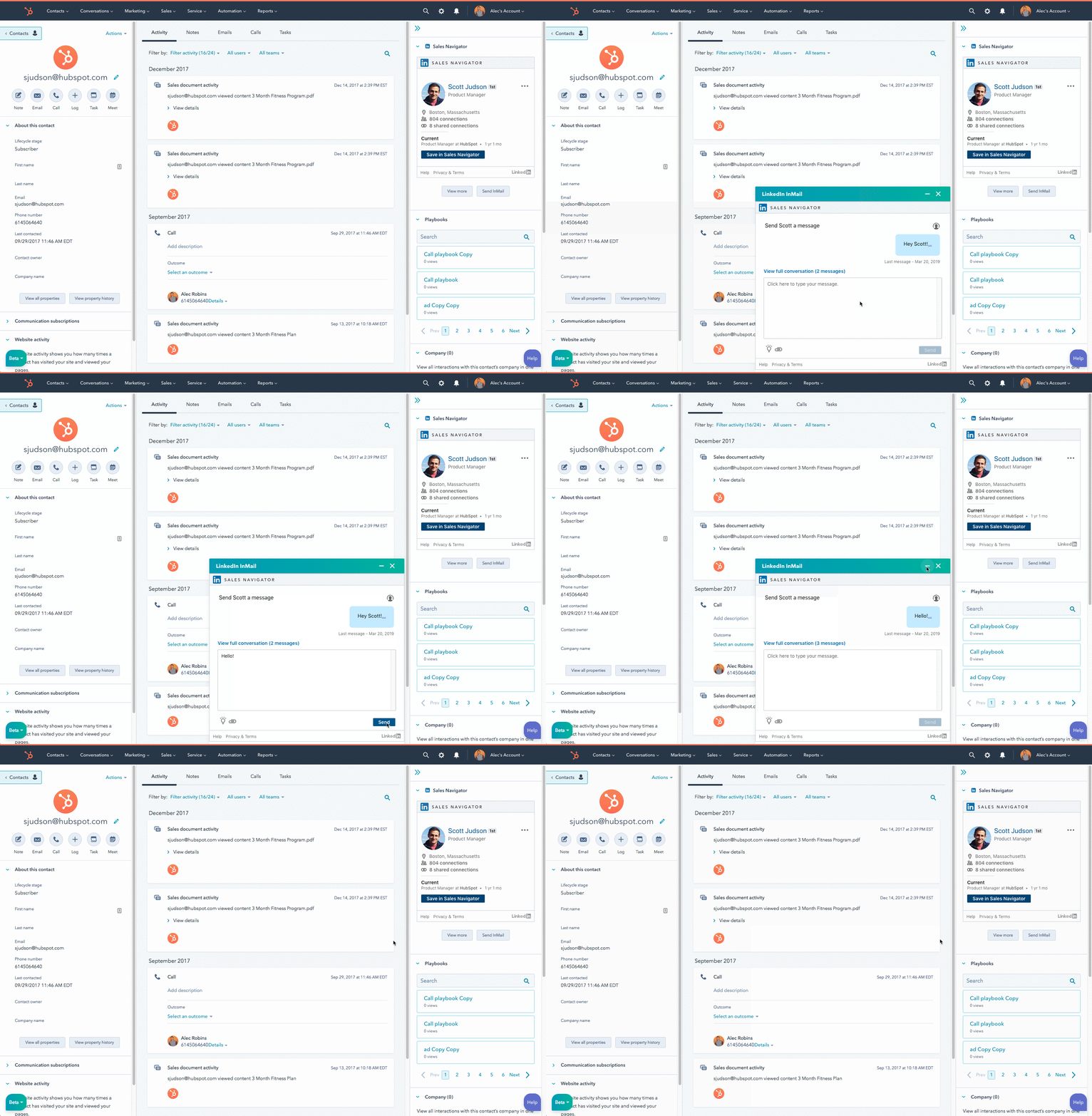
Sales Navigator and HubSpot work together to simplify sales tasks. You can send LinkedIn messages directly from HubSpot. The integration tracks all communication in one system. This reduces manual work and avoids missing important follow-ups. Your sales process becomes more organized and effective.
Credit: ecosystem.hubspot.com
Preparation Before Integration
Before connecting Sales Navigator with HubSpot, proper preparation is key. This step ensures a smooth integration process. It saves time and avoids common issues. Follow these simple tasks to get ready for integration.
Check Account Requirements
Verify your LinkedIn Sales Navigator subscription supports integration. The Team or Enterprise plan is usually needed. Confirm your HubSpot subscription level allows app connections. Basic plans may not support this feature. Meeting these requirements prevents access problems later.
Gather Login Credentials
Collect the usernames and passwords for both LinkedIn and HubSpot accounts. Make sure you have access to the correct accounts. Using the right credentials avoids authentication errors. Store these details securely for easy access during setup.
Review Hubspot Permissions
Check that your HubSpot user role has permission to install apps. Admin rights are often required for integrations. Without proper permissions, you cannot connect Sales Navigator. Adjust your user settings or contact an admin if needed.
Step-by-step Integration Guide
Integrating Sales Navigator with HubSpot helps streamline your sales process. Follow this simple step-by-step guide to connect both platforms smoothly. Each step ensures proper setup for better lead management and insights.
Access Hubspot Marketplace
Log in to your HubSpot account first. Find the Marketplace icon in the top navigation bar. Click the icon to open the HubSpot Marketplace. Use the search bar to type “Sales Navigator.” This will help locate the app quickly.
Install Sales Navigator App
Select the LinkedIn Sales Navigator app from the search results. Click the “Install” button to add it to your HubSpot account. Wait for the installation to complete. This process links the app to your HubSpot tools.
Connect Linkedin Account
After installation, go to the app settings. Click “Connect LinkedIn Account” to start linking. A login window will appear. Enter your LinkedIn credentials to sign in. This step connects your LinkedIn profile with HubSpot.
Authorize Permissions
LinkedIn will ask you to authorize permissions. Review the requested access carefully. Click “Allow” to grant the necessary permissions. This lets HubSpot access your Sales Navigator data securely.
Verify Connection
Return to HubSpot and check the integration status. Look for a confirmation message or status icon. Test by viewing LinkedIn insights on a contact record. Confirm everything syncs correctly and the integration works.

Credit: www.youtube.com
Using Sales Navigator Features In Hubspot
Integrating Sales Navigator with HubSpot lets you use LinkedIn’s powerful features right inside your CRM. This connection helps sales teams work faster and smarter. You can see LinkedIn details, send messages, and organize leads without leaving HubSpot. It keeps all your sales tools in one place.
View Linkedin Insights On Contacts
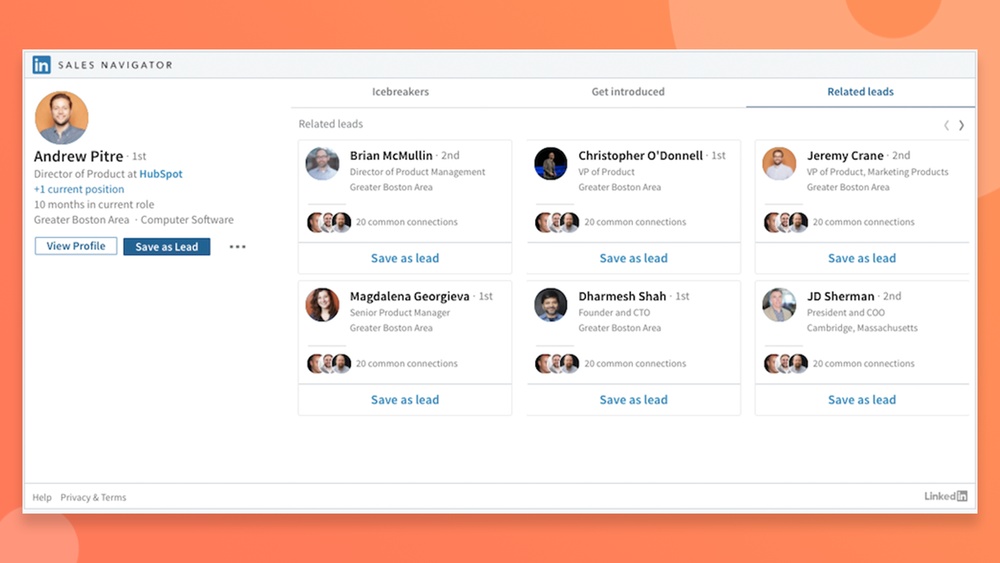
Sales Navigator shows LinkedIn profiles directly on HubSpot contact records. You see job titles, company info, and recent activity. This helps understand your contacts better before reaching out. You get a clear picture of who they are and what they do. It saves time switching between platforms.
Send Inmails From Hubspot
Send InMails to your prospects without leaving HubSpot. You can craft personalized messages and reach decision-makers faster. This feature improves communication and increases response chances. No need to open LinkedIn separately. It streamlines your outreach process in one dashboard.
Add Leads To Sales Navigator Lists
Quickly add HubSpot contacts to your Sales Navigator lead lists. Organize your prospects for targeted sales campaigns. This keeps your sales pipeline tidy and focused. You can manage leads efficiently and track progress easily. It helps prioritize the most promising opportunities.
Troubleshooting Common Issues
Troubleshooting common issues helps keep your Sales Navigator and HubSpot integration running smoothly. Problems can block important data flow and slow your sales process. Identifying and fixing these issues quickly saves time and effort. Below are frequent problems and simple ways to resolve them.
Connection Failures
Connection failures occur when HubSpot cannot link with Sales Navigator. Check your internet connection first. Verify that you use the correct login credentials for both platforms. Clear your browser cache and cookies to remove old data. Try reconnecting the apps from HubSpot Marketplace. Ensure your browser allows pop-ups and third-party cookies. Disable any VPN or firewall that might block access. Updating your browser can also solve compatibility issues.
Data Sync Delays
Data sync delays happen when information between Sales Navigator and HubSpot updates slowly. Confirm your sync settings are enabled in both tools. Large data sets take longer to sync. Patience is key during busy hours. Refresh your HubSpot dashboard to check for updates. Avoid making too many changes at once to prevent overload. If delays persist, disconnect and reconnect the integration. Contact support if the problem continues after these steps.
Permission Errors
Permission errors block access to certain features or data. Make sure your HubSpot user role has rights to use integrations. Sales Navigator permissions must allow API access. Admin users can review and update these settings. Check if your LinkedIn account is active and properly linked. Re-authenticate your LinkedIn login inside HubSpot to refresh permissions. Sometimes, logging out and back in solves these errors. Keep both accounts’ subscription plans current to avoid restrictions.
Tips To Maximize Sales Impact
Maximizing sales impact requires smart use of both Sales Navigator and HubSpot. Combining these tools boosts lead quality and sales efficiency. Focus on key strategies to get the most from this integration.
Leverage Advanced Search Filters
Sales Navigator’s search filters help find the right prospects fast. Use filters like industry, company size, and job title. Narrow searches to focus on high-potential leads. Save these searches to revisit them quickly. This keeps your pipeline filled with quality contacts.
Integrate With Hubspot Workflows
Link Sales Navigator data with HubSpot workflows to automate tasks. Trigger follow-ups or emails based on lead activity. Automations reduce manual work and speed up responses. This keeps your sales process consistent and timely.
Monitor Engagement Metrics
Track how prospects interact with your messages and profiles. Use HubSpot to see email opens, clicks, and replies. Sales Navigator shows LinkedIn engagement like profile views and InMail responses. Analyze these metrics to refine your approach and improve results.
Alternative Integrations To Consider
Exploring other integration options can enhance your CRM and sales tools. Some alternatives offer unique features that complement HubSpot and Sales Navigator. These options may fit different business needs and workflows. They help expand your lead generation and management capabilities beyond standard integrations.
Meta Lead Ads With Hubspot
Meta Lead Ads connect Facebook and Instagram with HubSpot. This integration imports leads directly into your CRM. It saves time by automating lead capture from social media campaigns. Marketers can nurture leads faster and track ad performance within HubSpot. The setup is simple and requires linking your Meta ad account to HubSpot.
Other Linkedin Tools
Besides Sales Navigator, LinkedIn offers tools like LinkedIn Ads and LinkedIn Events. These tools can sync data with HubSpot to improve lead tracking. LinkedIn Ads integration helps manage ad campaigns and measure ROI. LinkedIn Events integration captures attendee information for follow-up. Using multiple LinkedIn tools can create a fuller picture of your prospects.
Third-party Crm Connectors
Third-party connectors link HubSpot with various apps and platforms. Tools like Zapier or Automate.io connect LinkedIn and HubSpot indirectly. They allow custom workflows to sync contacts, tasks, and messages. These connectors support unique business processes without complex coding. They offer flexibility if native integrations do not cover all needs.
Credit: www.iv-lead.com
Frequently Asked Questions
Can You Connect Sales Navigator To Hubspot?
Yes, you can connect Sales Navigator to HubSpot. Install the LinkedIn Sales Navigator app from HubSpot Marketplace and link your accounts. This integration allows viewing LinkedIn insights and sending InMails directly from HubSpot contact records.
Can I Connect My Linkedin To Hubspot?
Yes, you can connect LinkedIn to HubSpot by linking your LinkedIn account in HubSpot’s Marketing > Social settings. This integration allows seamless management of LinkedIn interactions within HubSpot.
What Does Sales Navigator Integrate With?
Sales Navigator integrates with CRM platforms like HubSpot, Microsoft Dynamics, Salesforce, and various marketing tools to enhance sales processes.
How To Connect Hubspot To Meta?
Log in to HubSpot and go to Settings. Select Integrations, then Connected Apps. Find Meta and click Connect. Authorize your Meta account to sync data.
Conclusion
Integrating Sales Navigator with HubSpot improves your sales process. It helps you find and connect with prospects easily. You can view LinkedIn details right inside HubSpot. Sending messages and tracking leads becomes simple and fast. This integration saves time and keeps your data organized.
Try it to enhance your daily sales tasks. Stay consistent and watch your connections grow.